

22 Jul
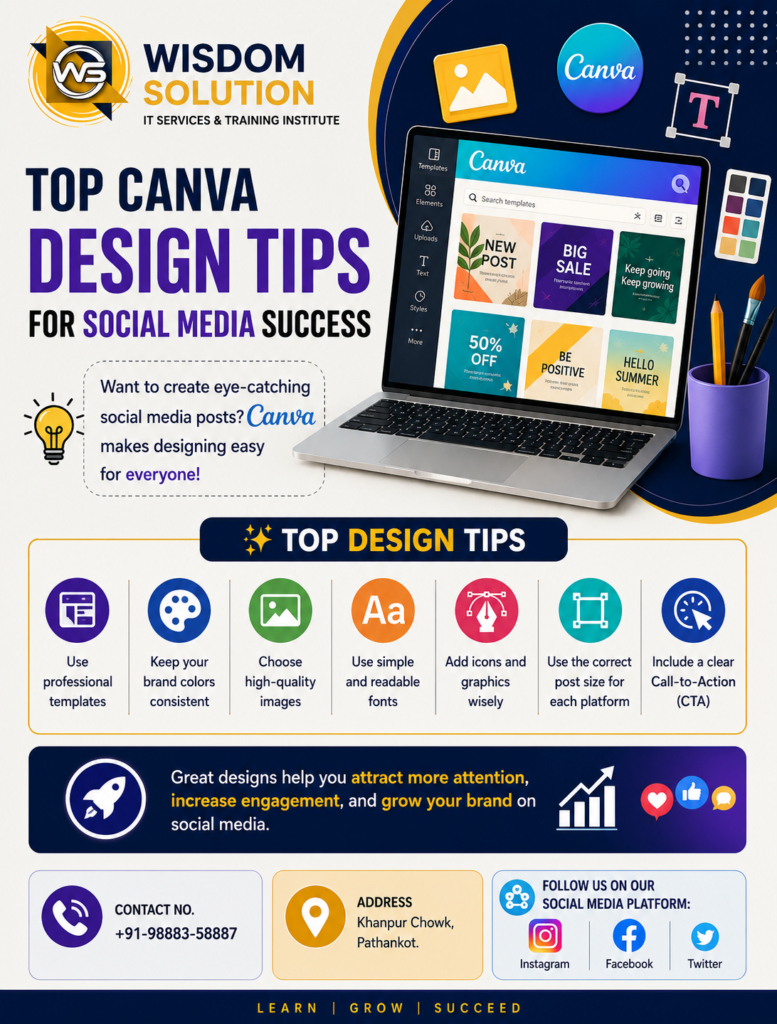
Creating attractive social media posts is essential for building your brand and increasing audience engagement. Canva has become one of the most popular graphic design tools because it is easy to use, even for beginners. By following the Top Canva Design Tips for Social Media Success, you can create professional-looking graphics that capture attention and improve your online presence.
Whether you’re a business owner, content creator, student, or marketer, these Canva tips will help you design posts that stand out on platforms like Instagram, Facebook, LinkedIn, and Pinterest.
Why Canva is the Best Design Tool
Canva provides thousands of templates, fonts, icons, and design elements that make graphic design simple.
Benefits of Canva include:
- Beginner-friendly interface
- Thousands of free templates
- Drag-and-drop editor
- Social media post sizes
- Brand Kit for consistent branding
- AI-powered design tools
These features make Canva an excellent choice for creating high-quality social media graphics.
1. Choose the Right Template
Start with a professional template that matches your brand and content.
Popular Canva templates include:
- Instagram Posts
- Instagram Stories
- Facebook Posts
- LinkedIn Banners
- YouTube Thumbnails
- Pinterest Pins
Using ready-made templates saves time while maintaining a professional appearance.
2. Keep Your Brand Consistent
Consistency helps people recognize your business.
Always use:
- Brand colors
- Brand fonts
- Logo placement
- Consistent design style
A consistent visual identity builds trust with your audience.
3. Use High-Quality Images
Images have a major impact on engagement.
Choose:
- HD images
- Professional illustrations
- Custom photos
- High-resolution backgrounds
Avoid blurry or low-quality visuals.
4. Use Easy-to-Read Fonts
Your content should be easy to read on both mobile and desktop devices.
Tips:
- Use simple fonts
- Limit font styles to two or three
- Highlight important text
- Maintain proper spacing
Readable text improves user experience.
5. Use Colors Wisely
Colors influence emotions and attract attention.
Choose colors that:
- Match your brand
- Create contrast
- Improve readability
- Highlight call-to-action buttons
Good color combinations make designs more appealing.
6. Add Icons and Graphics
Icons make your content more engaging.
Use:
- Business icons
- Marketing graphics
- Social media symbols
- AI illustrations
Avoid adding too many elements that clutter your design.
7. Optimize for Every Platform
Each social media platform uses different image sizes.
Examples:
- Instagram Post – 1080 × 1350 px
- Facebook Post – 1080 × 1080 px
- LinkedIn Post – 1200 × 1200 px
- Pinterest Pin – 1000 × 1500 px
Using the correct size ensures your designs look professional.
8. Add a Clear Call-to-Action
Every design should encourage users to take action.
Examples:
- Learn More
- Visit Our Website
- Enroll Now
- Contact Us Today
- Read the Full Article
A strong CTA increases clicks and conversions.
Top Canva Design Tips for Social Media Success
Following these Top Canva Design Tips for Social Media Success will help you create attractive, professional, and engaging social media graphics. Consistent branding, quality visuals, readable text, and the right image sizes can significantly improve your content performance.
Whether you’re promoting a business, sharing educational content, or building a personal brand, Canva provides all the tools you need to succeed.
Conclusion
The Top Canva Design Tips for Social Media Success can transform the way you create content. Canva makes designing simple, but applying smart design principles will help your posts attract more attention and engagement.
Practice regularly, experiment with different templates, and stay updated with the latest design trends to keep your social media content fresh and professional.
Contact No. – +91-98883-58887
Address – Khanpur Chowk, Pathankot.
Follow us on our Social Media Platform:
FAQs
1. Why is Canva popular for social media design?
Canva is easy to use, offers thousands of templates, and allows users to create professional graphics without advanced design skills.
2. What is the best Canva size for Instagram posts?
The recommended size is 1080 × 1350 pixels for portrait posts.
3. How can Canva improve social media engagement?
Canva helps create visually appealing graphics that attract attention, improve branding, and encourage more likes, shares, and comments.
4. Is Canva suitable for beginners?
Yes. Canva’s drag-and-drop interface makes it one of the easiest graphic design tools for beginners and professionals alike.